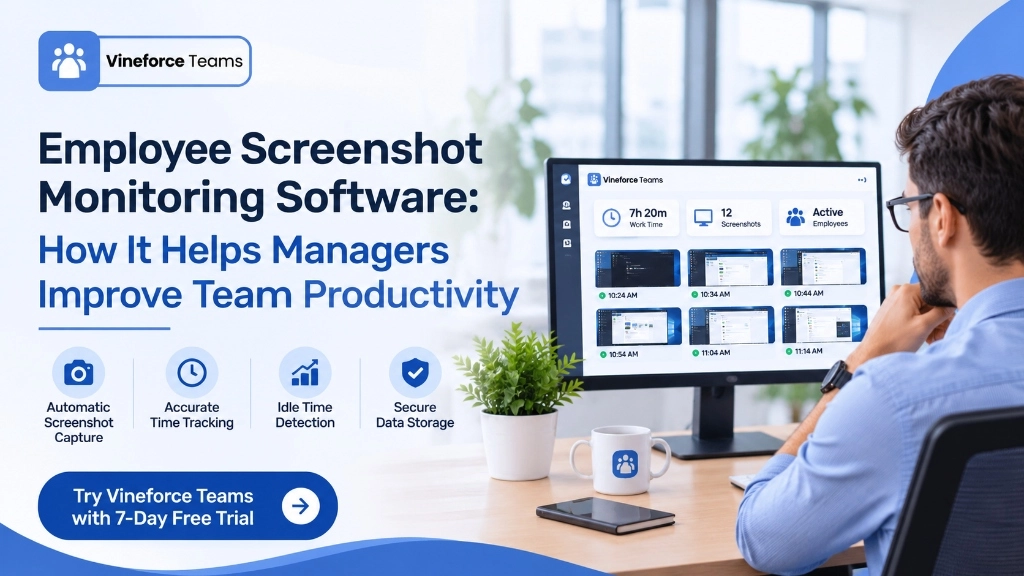
Employee Screenshot Monitoring Software: How It Helps Managers Improve Team Productivity
- Ramesh Kumar
- 18 Nov, 2026
- 05 Mins read
- Time Management , Security , Development
Managing a remote or distributed team can be challenging when managers have limited visibility into daily work activities. Knowing when employees work, understanding their activity patterns, and reviewing work hours can become difficult without an organized tracking solution.
This is where employee screenshot monitoring software can help. It combines automatic screenshot capturing with time tracking to give managers a clearer view of employee work sessions. Instead of relying entirely on manual updates, managers can review recorded screenshots, understand work patterns, and identify idle periods.
In this guide, we will explore how screenshot monitoring works, its important features, and how Vineforce Teams helps businesses simplify employee time tracking and productivity monitoring.
What Is Employee Screenshot Monitoring Software?
Employee screenshot monitoring software is a solution that automatically captures screenshots of employee computer screens during working hours. It helps managers review recorded work activities and understand how employees spend their working time.
When combined with automatic time tracking, screenshot monitoring provides additional visibility into work sessions. Managers can review screenshots alongside recorded work hours to better understand employee activity patterns.
For businesses managing remote teams, this approach can make work tracking more organized and reduce the need for manual time records.
How Does Employee Screenshot Monitoring Software Work?
Screenshot monitoring software works by automatically capturing screen images at scheduled or randomized intervals while employees work.
With Vineforce Teams, the process happens in the background, so employees do not need to manually start or stop the timer.
Here is how the process works:
- Automatic time tracking: Work hours are tracked automatically while employees work.
- Background screenshot capturing: Screenshots are captured without interrupting the normal workflow.
- Random screenshot intervals: Businesses can configure screenshot intervals of 5, 10, 15, or 30 minutes.
- Idle time detection: The system detects inactivity and stops the tracker after 5 minutes of inactivity.
- Work activity review: Managers can review recorded screenshots and time logs to understand work patterns.
This process helps managers maintain a clearer record of working hours and employee activities.
How Screenshot Monitoring Helps Managers Improve Team Productivity
Employee monitoring software with screenshots can help managers understand work patterns and review recorded activities. Here are some ways it supports productivity management:
1. Provides Visibility into Employee Work Activities
Managing remote employees can make it difficult to understand daily work activities. Automatic screenshot capturing gives managers a visual record of work sessions.
Instead of depending only on manual reports, managers can review recorded screenshots and gain better visibility into employee activities.
2. Helps Managers Review Working Hours
Accurate work hour records are important for understanding employee schedules and project activities.
With automatic time tracking, Vineforce Teams record working hours without requiring employees to start and stop timers manually. Managers can review recorded time alongside screenshots for a clearer understanding of work sessions.
3. Identifies Idle Time Automatically
Not every period during a working session represents active computer use. Idle time detection helps managers identify periods of inactivity.
Vineforce Teams automatically stops the tracker after 5 minutes of inactivity. This helps maintain more accurate working time records and supports a fairer review of recorded work hours.
4. Supports Better Work Pattern Analysis
Screenshots and recorded time logs provide managers with information about employee work sessions.
By reviewing these records, managers can better understand activity patterns, identify distractions, and make more informed decisions about team productivity.
Key Features of Employee Monitoring Software with Screenshots
When choosing employee screenshot monitoring software, managers should understand which features support their workforce management needs.
Here are some important capabilities available with Vineforce Teams:
Automatic Screenshot Capturing
Vineforce Teams automatically captures screenshots in the background during working hours. Employees do not need to capture screenshots manually or interrupt their regular workflow.
This makes screen capture employee monitoring easier to manage.
Customizable Screenshot Intervals
Screenshot frequency can influence how managers review recorded work activities.
Vineforce Teams offers random screenshot capturing at configurable intervals of:
- 5 minutes
- 10 minutes
- 15 minutes
- 30 minutes
These randomized captures help provide a record of work activity without requiring manual screenshot submissions.
Automatic Time Tracking
Vineforce Teams automatically tracks employee working hours. Employees do not need to worry about starting or stopping the timer manually.
This makes time tracking with screenshots more convenient for teams and managers.
Smart Idle Time Detection
The system detects inactivity and stops the tracker after 5 minutes of inactivity. This helps distinguish recorded productive work spans from idle periods.
Microsoft Azure Storage
Screenshots and recorded data are saved on Microsoft Azure. This provides a centralized location for storing screenshot monitoring records.
Benefits of Time Tracking Software with Screenshots
Using time tracking software with screenshots can offer several practical benefits for businesses:
- Better work visibility: Managers can review screenshots and recorded work hours to understand employee activities.
- Organized work records: Automatic screenshot capturing helps maintain a record of work sessions.
- Reduced manual effort: Employees do not need to manually start or stop timers or capture screenshots.
- Idle time awareness: Automatic idle detection helps managers identify inactive periods.
- Improved productivity insights: Reviewing screenshots and time logs can help managers understand work patterns and identify areas that need attention.
These benefits can support more organized workforce management, especially for businesses managing remote and distributed teams.
How Vineforce Teams Simplifies Screenshot Monitoring
Vineforce Teams is employee time tracking and productivity monitoring software designed for businesses and remote teams.
Its Screenshot Monitoring feature combines automatic work hour tracking, background screenshot capturing, and smart idle detection to help managers understand employee work activities.
With Vineforce Teams, businesses can:
- Automatically track employee work hours.
- Capture screenshots in the background.
- Configure randomized screenshot intervals of 5, 10, 15, or 30 minutes.
- Detect inactivity after 5 minutes.
- Review screenshots alongside recorded time logs.
- Store screenshots and recorded data on Microsoft Azure.
The process runs automatically while employees work, reducing the need for manual tracking activities.
Whether you manage a remote team, an agency, or a distributed workforce, Vineforce Teams helps simplify work hour tracking and screenshot monitoring.
Best Practices for Using Screenshot Monitoring Software
To make screenshot monitoring more useful, managers should establish clear expectations for their teams.
Consider these practices:
- Define monitoring expectations: Explain how screenshot monitoring and time tracking are used within the organization.
- Choose suitable screenshot intervals: Configure 5, 10, 15, or 30-minute intervals according to your tracking requirements.
- Review recorded activities regularly: Use screenshots and time logs to understand work patterns.
- Consider idle time records: Review inactivity alongside recorded working hours.
- Focus on productivity insights: Use monitoring information to identify areas for improvement rather than relying on screenshots alone.
A clear monitoring approach can help managers organize work records and understand employee activity more effectively.
Frequently Asked Questions
1. What is employee screenshot monitoring software?
Employee screenshot monitoring software automatically captures screenshots of employee computer screens during working hours. It helps managers review recorded work activities and understand employee work patterns.
2. How does screenshot monitoring work?
Screenshot monitoring automatically captures screenshots at configured intervals. With Vineforce Teams, screenshots can be captured randomly at 5, 10, 15, or 30-minute intervals.
3. Can employee monitoring software capture screenshots automatically?
Yes. Vineforce Teams automatically captures screenshots in the background while employees work, without requiring manual screenshot submissions.
4. Does screenshot monitoring software track idle time?
Vineforce Teams includes smart idle time detection. It automatically stops the tracker after 5 minutes of inactivity to help maintain accurate work hour records.
5. What is the difference between time tracking and screenshot monitoring?
Time tracking records employee working hours, while screenshot monitoring provides visual records of computer screen activity. Vineforce Teams combine both capabilities to give managers a clearer understanding of work sessions.
6. Where are Vineforce Teams screenshots stored?
Screenshots and recorded data are saved on Microsoft Azure.
Conclusion
Employee screenshot monitoring software helps managers gain better visibility into employee work sessions through automatic screenshot capturing and time tracking. Features such as randomized screenshot intervals, automatic idle detection, and recorded work hour tracking can make workforce monitoring more organized.
Vineforce Teams brings these capabilities together in one solution, helping businesses understand employee activities and productivity patterns.
Ready to simplify employee time tracking and screenshot monitoring? Try Vineforce Teams with a 7-day free trial and no credit card required.