
How to Configure keyVaultReferenceIdentity in Azure App Service?
- Harsh Gupta
- 24 Jul, 2026
- 07 Mins read
- Azure , Keyvault , Security
Overview
This guide shows you how to fix a critical Azure App Service configuration issue where the keyVaultReferenceIdentity property is hidden from the Azure Portal but required for accessing Key Vault secrets securely using a User-Assigned Managed Identity.
Quick Summary: If your Azure App Service Key Vault references show a “Not Resolved” error or fail to fetch secrets, it is likely because the hidden
keyVaultReferenceIdentityproperty is not configured. Since this property is hidden in the Azure Portal, you must runaz webapp update --set properties.keyVaultReferenceIdentity="..."using the Azure CLI to assign your User-Assigned Managed Identity, then restart your App Service.
Symptoms
Developers encountering this Azure App Service Key Vault fix issue typically observe:
- Key Vault references returning empty values instead of secret content in application code
- Configuration entries in Azure Portal showing a “Not Resolved” error message
- Application settings failing to fetch secret values from Key Vault automatically
- Authentication errors when attempting to access protected secrets
- 401/403 access denied errors from App Service attempting to validate Key Vault access
If you are setting up secure application infrastructure on Azure, you may also be interested in our guide on how to set up Azure CI/CD pipelines using Visual Studio to automate your deployment configurations.
Why This Happens
For secure Azure App Service secret management, you can use Managed Identity authentication to access Key Vault secrets. However, if you choose to use a User-Assigned Managed Identity, the keyVaultReferenceIdentity property must point to that identity.
The core issue is that the keyVaultReferenceIdentity property is deliberately hidden from standard Azure Portal interfaces. This property only exists at the Azure Resource Manager (ARM) level, making it invisible through the typical Azure management UI. Without setting this property explicitly, App Service defaults to using a System-Assigned Managed Identity, causing authentication to fail if you configured your Key Vault access policies only for the User-Assigned Managed Identity.
Technical Architecture
App Service → User-Assigned Managed Identity → Azure AD (Entra ID) → Key Vault Access Policy → Secret Store- The App Service attempts to authenticate using its assigned Managed Identity.
- Azure needs to know which identity to use for resolving the secret references, which is defined by the
keyVaultReferenceIdentityproperty. - This mapping exists only in the underlying ARM configuration.
- Without this configuration, the authentication chain breaks, leading to “Not Resolved” configuration states.
- Key Vault references resolve to empty values or error messages.
Why Portal Visibility is Limited
Microsoft implements this design choice for several reasons:
- Security: Keeps identity-to-Key Vault mappings out of standard management interfaces.
- Simplicity: Prevents accidental misconfigurations that could cause security issues.
- Audit Trail: Ensures all identity configurations go through proper change management.
- Resource Provider: Some properties require ARM-level configuration for consistency across deployments.
Prerequisites
Before applying the Azure Key Vault references configuration, ensure you have:
Required Azure Resources
- Azure Subscription: Active subscription with appropriate permissions.
- Azure App Service: Existing Linux or Windows App Service.
- User-Assigned Managed Identity: Pre-created Managed Identity for the App Service.
- Azure Key Vault: Key Vault with access policies (or Azure RBAC) configured for the Managed Identity.
Required Tools and Permissions
- Azure CLI: Version 2.0+ installed locally.
- PowerShell: Azure Az module installed.
- RBAC Permissions:
ContributororOwnerrole on the App Service resource.Readerrole minimum for resource listing.- Key Vault access policies granting
GetSecret permissions.
Environment Setup
# Install required Azure CLI extensions
az extension add --name keyvault

# Verify Azure CLI installation
az --version

# Login to Azure (if not already authenticated)
az login
Step-by-Step Solution Guide
Step 1: Prepare Your PowerShell Environment
Initialize your PowerShell session and clear any cached authentication tokens:
# Connect to Azure (if not already connected)
Connect-AzAccount

# Clear any cached authentication tokens
Clear-AzTokenCache

# Verify current authentication status
Get-AzContext
Step 2: Target the Correct Azure Subscription
Set the correct subscription context for your infrastructure to avoid cross-subscription issues:
# List all accessible subscriptions
Get-AzSubscription | Select-Object Name, Id, State

# Set your target subscription
Set-AzContext -SubscriptionId "YOUR-SUBSCRIPTION-ID"
Step 3: Execute the ARM Fix Script
Apply the required Azure Managed Identity for App Service configuration:
# =========================================================================
# FIX: App Service KeyVault Reference Identity Configuration Script
# =========================================================================

# 1. Configure your deployment variables
$subscriptionId = "YOUR-SUBSCRIPTION-ID"
$resourceGroup  = "your-resource-group-name"
$identityName   = "your-managed-identity-name"
$appName        = "your-app-service-name"

# 2. Construct the User-Assigned Identity Resource URL
$identityUrl = "/subscriptions/$subscriptionId/resourceGroups/$resourceGroup/providers/Microsoft.ManagedIdentity/userAssignedIdentities/$identityName"

# 3. Retrieve the App Service's resource ID
$appUrl = Get-AzWebApp -ResourceGroupName $resourceGroup -Name $appName | Select-Object -ExpandProperty Id

# 4. Prepare the ARM PATCH request payload
$uriPath = "{0}?api-version=2021-01-01" -f $appUrl
$payload = @{
    properties = @{
        keyVaultReferenceIdentity = $identityUrl
    }
} | ConvertTo-Json -Depth 3

# 5. Execute the API update request
$response = Invoke-AzRestMethod -Method PATCH -Path $uriPath -Payload $payload

# 6. Verify successful execution
$response.Content | ConvertFrom-Json
Step 4: Complete Verification Process
After script execution, complete these validation steps:
Restart App Service
- Azure Portal: Navigate to App Service → Overview → Restart button.
- PowerShell:
Restart-AzWebApp -ResourceGroupName $resourceGroup -Name $appName - Purpose: Force reload of new identity configuration.
[!TIP] If you want to automate App Service restarts based on schedules or triggers, check our guide on how to restart an Azure Web App using Azure Logic Apps.
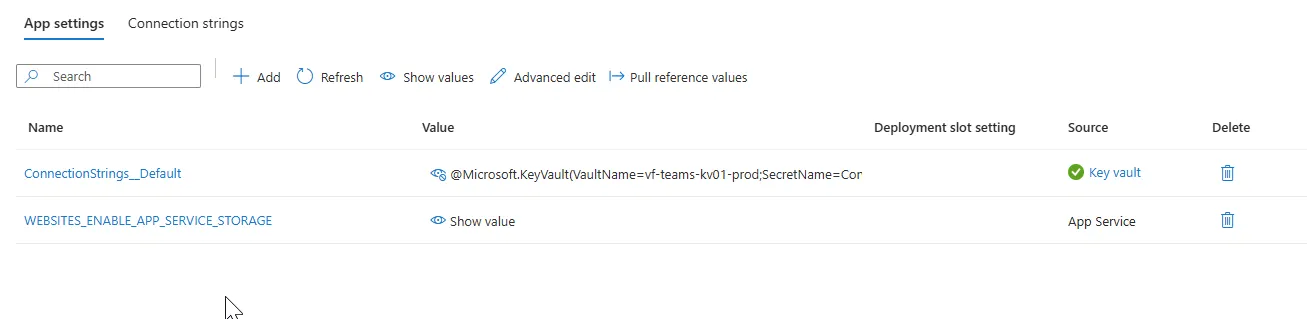
Validate Application Settings
- Access your App Service in Azure Portal.
- Navigate to Settings → Configuration → Application Settings.
- Locate Key Vault reference entries.
- Confirm green checkmarks (✅) indicate successful resolution.
- Verify secrets display values like
@Microsoft.KeyVault(VaultName={your-key-vault-name},SecretName={your-secret-name}).
Test Secret Access
- Check application logs for resolution status.
- Verify actual secret values are accessible in your environment.
- Confirm application functionality with Azure KeyVault integration with App Service.
Success Checklist
- User-Assigned Managed Identity assigned to App Service
- PowerShell script executed without errors
- App Service restarted successfully
- Green checkmarks visible in Application Settings
- Secret values properly resolved
- Application functions normally
Common Issues and Troubleshooting
Issue: “Not Resolved” Errors Persist
Root Cause: User-Assigned Managed Identity not attached to App Service.
Solution: Verify identity assignment in Azure Portal:
- Open your App Service in Azure Portal.
- Navigate to Identity → User assigned → Assigned identities.
- Confirm your Managed Identity is listed and enabled.
Issue: Permission Denied
Root Cause: Insufficient RBAC permissions.
Solution: Grant required permissions:
- Navigate to your App Service → Access control (IAM).
- Add Contributor role for comprehensive permissions.
- Alternative: Grant specific
Microsoft.Web/sites/writepermission. - If you face SSL or secure connection issues in your App Service environments, see our guide on how to configure TLS and resolve errors on Azure Web Apps.
Issue: Cross-Subscription Access
Root Cause: Key Vault, Managed Identity, and App Service in different subscriptions.
Solution: Ensure all resources are in the same subscription:
- Deploy all resources to an identical subscription.
- Verify Key Vault access policies allow Managed Identity from current subscription.
- Use cross-tenant access if working across subscriptions.
Security Considerations
Required RBAC Permissions
The script requires these specific Azure permissions:
| Permission | Required For | Description |
|---|---|---|
Microsoft.Web/sites/read | Get-AzWebApp | Read App Service properties |
Microsoft.Web/sites/write | PATCH operation | Update App Service configuration |
Microsoft.ManagedIdentity/userAssignedIdentities/read | Identity reference | Read Managed Identity details |
Security Best Practices
- Principle of Least Privilege: Use Contributor role instead of Owner when possible.
- Identity Lifecycle Management: Regularly review and rotate Managed Identity access.
- Audit Compliance: Enable diagnostic settings for tracking configuration changes.
- Access Policy Configuration: Configure Key Vault access policies with specific permissions.
- Secret Rotation: Implement automated Key Vault secret rotation policies.
When dealing with application security and access controls in Azure Web Apps, managing identities is just one layer of defense. It’s equally important to secure your application boundaries. Check out our articles on how to set up a Content Security Policy (CSP) and learn how advanced security measures can safeguard your SaaS application.
Alternative Implementation Methods
Azure CLI Solution
az webapp update --resource-group your-resource-group \
  --name your-app-name \
  --set properties.keyVaultReferenceIdentity="/subscriptions/YOUR-SUBSCRIPTION-ID/resourceGroups/your-resource-group/providers/Microsoft.ManagedIdentity/userAssignedIdentities/your-identity-name"

# Verify the update
az webapp show --resource-group your-resource-group --name your-app-name --query properties.keyVaultReferenceIdentity
Infrastructure as Code (Bicep)
@description('App Service name')
param appServiceName string

@description('Resource group name')
param resourceGroupName string

@description('Location for all resources')
param location string

@description('User-Assigned Managed Identity ID')
param keyVaultReferenceIdentityId string

resource appService 'Microsoft.Web/sites@2021-01-01' = {
  name: appServiceName
  location: location
  resourceGroupName: resourceGroupName
  kind: 'linux'
  properties: {
    serverFarmId: appServicePlanId
    keyVaultReferenceIdentity: keyVaultReferenceIdentityId
  }
}
Infrastructure as Code (Terraform)
resource "azurerm_app_service" "example" {
  name                = "your-app-name"
  location            = azurerm_resource_group.example.location
  resource_group_name = azurerm_resource_group.example.name
  app_service_plan_id = azurerm_app_service_plan.example.id
  kind                = "linux"

  site_config {
    min_tls_version = "1.2"
  }

  identity {
    type         = "UserAssigned"
    identity_ids = [azurerm_user_assigned_identity.example.id]
  }

  lifecycle {
    ignore_changes = all
  }
}

resource "azurerm_key_vault" "example" {
  name                     = "your-keyvault-name"
  location                 = azurerm_resource_group.example.location
  resource_group_name      = azurerm_resource_group.example.name
  tenant_id               = data.azurerm_client_config.current.tenant_id
  sku_name                 = "standard"
  enabled_for_template_deployment = true

  access_policy {
    tenant_id = azurerm_app_service.example.identity.0.tenant_id
    object_id = azurerm_app_service.example.identity.0.principal_id
    secret_permissions = ["get", "list"]
  }
}

*If your application is built on top of .NET or C#, you should also read our deep dive on [what's new in .NET 9](/whats-new-in-net-9-faster-safer-smarter-features) and [exploring C# 13 features](/exploring-csharp-13-key-features-of-microsofts-latest-release-with-net-9) to see how modern .NET runtime optimizations can leverage Key Vault references more efficiently.*
Technical Limitations and Considerations
Current Limitations
- Portal Invisibility: The
keyVaultReferenceIdentityproperty cannot be managed through Azure Portal UI. - API Version Dependency: Uses ARM API version 2021-01-01.
- Resource Provider Constraints: Requires
Microsoft.Web/sitesresource provider availability. - Manual Configuration: Requires PowerShell or CLI interaction for setup.
Performance Impact
- App Service Restart: Required for configuration changes to take effect.
- Authentication Overhead: Additional identity validation adds minimal latency.
- Resource Consumption: No significant performance impact on secret retrieval.
Common Implementation Mistakes
Mistake 1: Premature Script Execution
Problem: Running configuration script before identity assignment. Solution: Always assign Managed Identity first, then execute PowerShell script.
Mistake 2: Incorrect Subscription Context
Problem: Script running in wrong Azure subscription.
Solution: Verify subscription context with Get-AzContext before running.
Mistake 3: Incomplete Identity URLs
Problem: Missing subscription ID or resource group in identity URL. Solution: Ensure complete resource URL construction in script.
Frequently Asked Questions (FAQ)
Why are my Azure App Service Key Vault references showing ‘Not Resolved’?
This error occurs when the App Service is not configured to use the correct identity for accessing Key Vault. Setting the keyVaultReferenceIdentity property to your User-Assigned Managed Identity’s resource ID resolves this authentication mismatch.
Why is the keyVaultReferenceIdentity property not visible in the Azure Portal?
Microsoft intentionally hides the keyVaultReferenceIdentity property from the Azure Portal UI to prevent accidental modification. It must be updated programmatically via ARM APIs, Azure CLI, PowerShell, Bicep, or Terraform.
Do I need to restart Azure App Service after configuring the keyVaultReferenceIdentity?
Yes, you must restart the App Service to clear the token cache and force the app instance to apply the newly configured Key Vault reference identity.
Related Documentation
- Use Key Vault references as app settings in Azure App Service
- Site.KeyVaultReferenceIdentity Property
- User-Assigned Managed Identity Overview
- Bicep KeyVaultReferenceIdentity in Function App
- Azure App Service Key Vault Reference: User Assigned Managed Identity
Quick Reference Commands
PowerShell Commands
# Check current subscription context
Get-AzContext

# List all available subscriptions
Get-AzSubscription | Select-Object Name, Id, State

# Set subscription context
Set-AzContext -SubscriptionId "your-subscription-id"

# Retrieve App Service information
Get-AzWebApp -ResourceGroupName "your-rg" -Name "your-app-name"

# Restart App Service to apply changes
Restart-AzWebApp -ResourceGroupName "your-rg" -Name "your-app-name"

# Get diagnostic logs
Get-AzWebAppLog -ResourceGroupName "your-rg" -Name "your-app-name"
Verification Commands
# Verify KeyVaultReferenceIdentity configuration
Get-AzWebApp -ResourceGroupName "your-rg" -Name "your-app-name" | Select-Object -ExpandProperty KeyVaultReferenceIdentity

# Check App Service identity status
Get-AzWebApp -ResourceGroupName "your-rg" -Name "your-app-name" | Select-Object -ExpandProperty Identity
Success Metrics
Track these indicators to confirm successful implementation:
- Configuration Status: Green checkmarks in Application Settings.
- Secret Resolution: Keys display
@Microsoft.KeyVault(...)format. - Authentication Success: Application logs show successful secret retrieval.
- Performance: No increased latency in secret access operations.
- Security: Proper RBAC permissions and access policies in place.
Conclusion
This comprehensive guide resolves Azure App Service KeyVault Reference Identity configuration issues by addressing the hidden keyVaultReferenceIdentity property problem. The solution enables proper authentication between Azure App Service and Azure Key Vault through Managed Identity integration.
By following this step-by-step approach, developers can successfully:
- Configure KeyVault Reference Identity using PowerShell.
- Verify secret resolution in application settings.
- Implement proper security and RBAC permissions.
- Use alternative methods like Azure CLI or infrastructure as code.
The hidden property may be invisible in the Azure Portal, but with this technical approach, developers can overcome this architectural limitation and maintain secure, compliant secret management for their Azure applications.
For ongoing maintenance, remember to review identity assignments quarterly, monitor configuration changes, and implement automated secret rotation policies to ensure continued security and compliance.
This article covers advanced Azure administration concepts. Ensure you have proper permissions and understand the implications before making changes to production environments.